Instagram Transcript / Field guide 01
Instagram transcript to SRT: a worked example
To turn an Instagram transcript into SRT subtitles, keep the spoken words and add numbered cues with start and end times. In TranscriptLeaf, upload a saved video, choose Original output, transcribe, then select SRT and download. A plain TXT file does not contain the timing needed for subtitles.
Open the transcript tool ↗Why an ordinary transcript is not enough
A transcript preserves words. A subtitle file also tells a player when to show them. Renaming a text document from .txt to .srt does not create those timings. Keep a readable transcript for notes, and a separate SRT for a player or editor that accepts subtitle tracks. The subtitle file does not contain a video. It also does not burn words into the picture.
A small example you can inspect
We created the paper-folding example below for this guide. It is an authored timing exercise, not a transcript of a creator’s recording and not a speech-recognition accuracy test. Imagine a nine-second clip with three spoken instructions. The plain transcript is: Fold the paper in half. Press along the edge. Open it and mark the center. This sentence sequence is readable, but it says nothing about the short pauses between instructions.
1
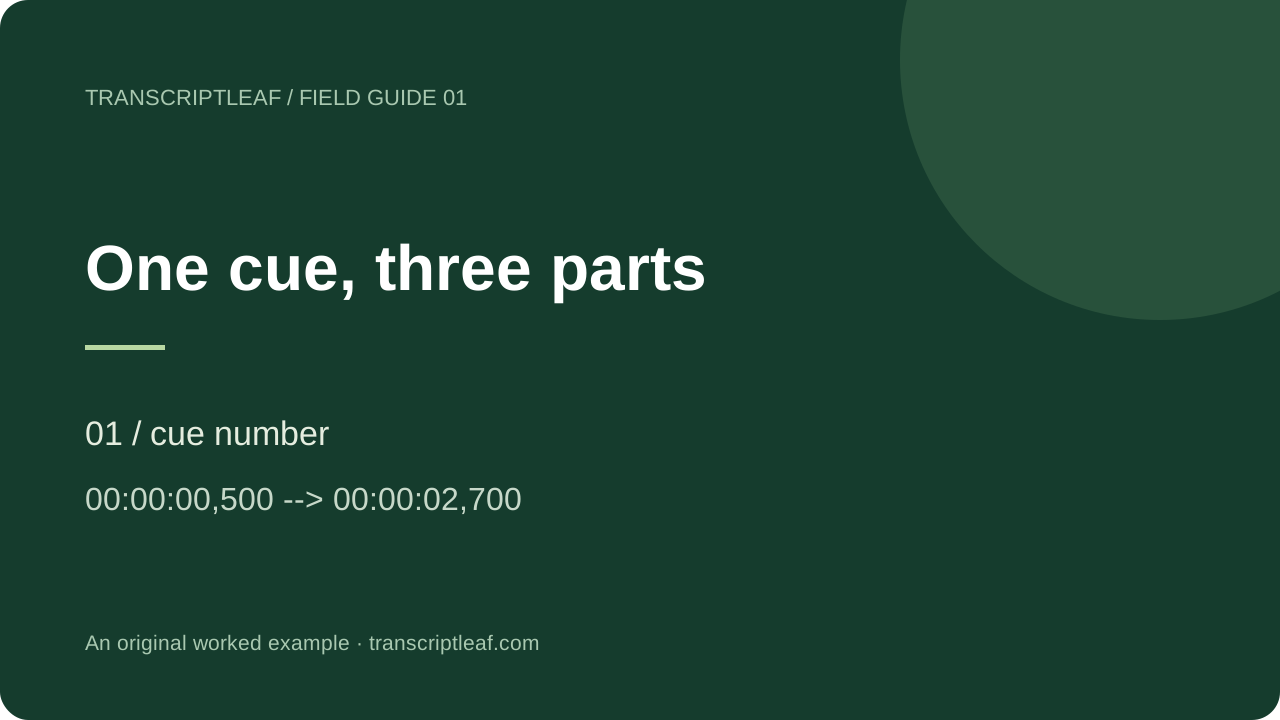
00:00:00,500 --> 00:00:02,700
Fold the paper in half.

2
00:00:03,000 --> 00:00:05,800
Press along the edge.

3
00:00:06,200 --> 00:00:09,000
Open it and mark the center.
Download the original three-cue practice file
Read the first cue
Cue 1 starts at half a second and ends at 2.7 seconds. Its display duration is 2.2 seconds. The next cue begins at 3 seconds, leaving a 0.3-second gap. That gap is intentional in this exercise: do not stretch a subtitle across every silent pause simply to fill the screen. The number above the time line is the cue identifier, not a word count. The comma before the last three digits separates milliseconds. Keep the two hyphens and greater-than sign in the arrow.
Check the full sequence
The three cues in our example start at 0.5, 3.0 and 6.2 seconds. They finish at 2.7, 5.8 and 9.0 seconds. Each end comes after its own start, and each next start follows the previous end. Blank lines separate the cues. Our local format check confirms three cues, increasing cue numbers, positive durations and no overlapping intervals. That is a structural check only: real subtitle timing must still be compared with the actual audio.
Try a deliberate timing mistake
Change the second start time from 00:00:03,000 to 00:00:02,500. It now starts 0.2 seconds before cue 1 finishes. Depending on the player, two instructions may compete on screen or the transition may be confusing. Restore the start to 3.0 seconds. Next change the third end to 00:00:05,000. The third cue would end before it begins, so the interval is invalid. These two controlled edits are useful checks before troubleshooting an unfamiliar export.
Turn your saved video into an SRT
Use a local file that you own or have permission to process. TranscriptLeaf currently accepts one file up to 50 MB and two minutes; whether it opens also depends on browser audio-decoding support. Instagram links are not accepted by this tool. Choose Original as the output language if you want the spoken wording, then run transcription. Open the SRT view, listen to the recording while checking the cues, make corrections, and download the .srt file. Keep the video and subtitle together so you can check them in the destination editor.
Keep the two editing views separate
TranscriptLeaf keeps Text and SRT edits separately. If a name is wrong, correcting it in Text does not automatically correct the subtitle version. Make the matching change in SRT before exporting it. Switching between Original and Translation also switches the version being edited. The downloaded file reflects that view, so confirm both the language and SRT selection before saving.
What if I translate the transcript?
Translation changes words; it does not automatically create new speech timing. TranscriptLeaf’s translated subtitles retain the original cue times. In our sample, replacing a short instruction with a much longer sentence would leave the same 2.2-second first interval. Read the translated cue at a normal pace while replaying that interval. If it cannot be read comfortably, shorten the wording without changing meaning or retime it in a subtitle editor. Do not present the original timestamps as proof that a translation is ready to publish.
Will this add captions to my Instagram video?
Downloading SRT gives you a separate subtitle file. To make the words visible in the exported video, use an editor that accepts SRT, check the result, and render captions into the picture. This guide does not claim that every Instagram upload surface accepts a separate SRT file. Check the workflow offered by the editor or publishing interface you actually use.
Before sharing
Listen once for names, numbers and missing words. Watch once for cue transitions and text that leaves the screen too early. Confirm the subtitle language, export extension and final video version. Keep the original transcript as a reference. A file that passes a format check can still contain incorrect speech or uncomfortable reading speed.
A short walkthrough
Method and references
The practice text, timings and diagrams were created for this guide. The local format check validates structure, not speech recognition. TranscriptLeaf instructions were checked against the current interface and source on October 31, 2026.