Instagram Transcript / Speech or screen text
Can an Instagram transcript read a silent video’s text?
A speech transcript needs audible speech. Words visible in a silent video need manual transcription or a separate optical character recognition tool. Adding a different file extension or selecting another spoken language will not turn screen text into audio.
Download the silent sample Download the spoken sample
First decide which words you need
A video can carry spoken words, visible text, or both. A title card may remain readable with the volume muted, while an interview can remain understandable with the picture hidden. Those are different information sources. Before using a transcript tool, play the recording with sound and decide whether your target sentence is actually spoken.
If you need text printed on the picture, start with the original design or caption document when you have it. Otherwise pause on a clear frame and type the words, or use an OCR workflow and review the result against the picture. This guide does not add OCR to TranscriptLeaf. The local tool processes an audio track; it does not inspect video frames for letters.
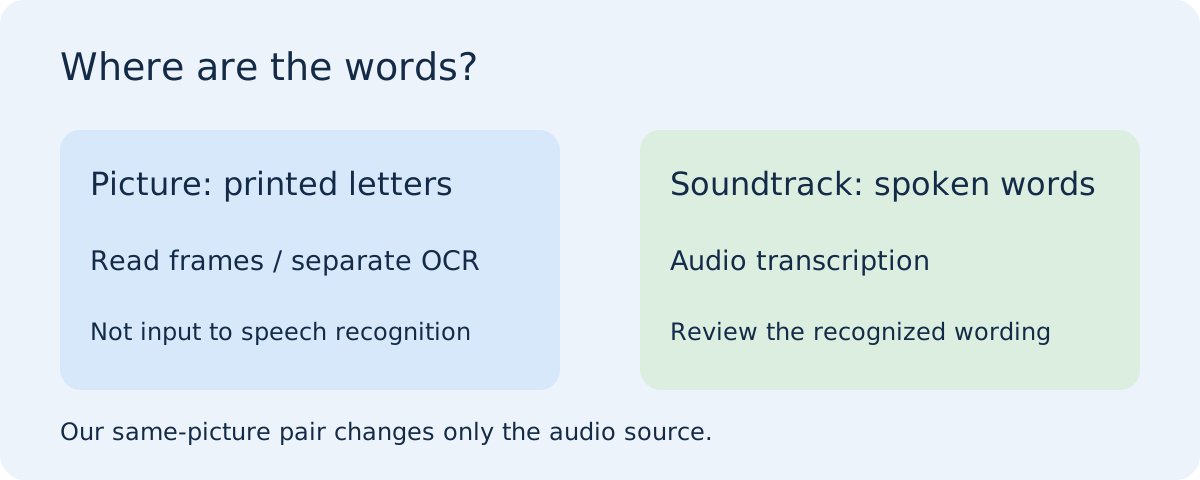
Our controlled pair: one picture, two audio tracks
We made a six-second portrait card with this authored text: “Fold the blue card. Place it beside the cup.” It is a constructed exercise, not a downloaded Reel or a quotation from a creator. Both MP4 files use that same still picture, H.264 video and an AAC audio track. The silent version’s audio was made from zero-valued samples; the other version uses synthetic English speech generated with Microsoft Zira. Neither contains music.
The visible sentence is deliberately unchanged between the two files. This keeps the picture from explaining a difference in upload behavior. Our purpose is narrow: observe whether the current tool accepts the audio for processing. We did not press Generate, run speech recognition, translate a sentence or compare model accuracy. The checks cannot establish how a recognizer would spell the sentence.
On November 3, 2026 we selected silent-card.mp4 in the public TranscriptLeaf upload control. The page displayed “This file is silent or too quiet. Choose a clip with audible speech.” Its Generate control remained disabled. The written sentence was plainly present in the picture, but it did not make the file pass the audio check.
We then selected spoken-card.mp4 in the same control. The page displayed “File ready. Choose a language or detect automatically.” Generate became enabled. This is an upload acceptance result, not a completed transcript. A model can still make mistakes after a file passes this check, so the enabled button should never be presented as proof of correct recognition.
What the two outcomes tell us
For this pair, the difference comes from the audio input rather than the visible words. The current application decodes the file’s audio, resamples it and checks its signal energy before allowing generation. Its silence check does not read the card. That explains why changing the speech-language menu would not recover the printed sentence from the silent file.
Do not extend the result into a claim that every rejected file contains perfect silence. The message also covers very quiet audio, and the experiment tested just one synthetic spoken sample and one digitally silent sample in this browser session. It did not test a whisper, background music, a missing audio track or unsupported codecs. Those need separate checks rather than a confident diagnosis from this pair.
If you repeat the exercise, keep the two original files rather than muting the browser’s speaker icon. Playback volume and the encoded audio samples are different things: turning your speakers down does not erase the file’s track. Conversely, adding a spoken narration creates a new source; any resulting transcript would describe that narration, not an OCR reading of the original silent picture.
Choose the next step for your own clip
If there is clear speech, use the saved file in the transcript tool and review the words against what you hear. If the audio is extremely quiet, inspect the original recording before changing it. Re-exporting can address a compatibility problem, but conversion cannot restore speech that was never recorded.
If there are only visible words, retain their line order and punctuation while copying them from the picture. Check small characters, names and numbers at a readable zoom. Keep any uncertain character marked for review instead of filling it from context. A screen-text transcript and a speech transcript should be labeled separately when a clip contains both.
If you make your own title card, keep the editable design file alongside the exported video. It is often a more dependable source of the intended lettering than a compressed frame. The file-archive guide explains how to keep source and derivative files associated without confusing their versions.
Scope and further reading
This page reports an upload check, not a transcription benchmark. The samples and diagram were made by this project. We reviewed SpeakApp’s Instagram workflow and GetTheScript’s Instagram page on November 3, 2026. They describe speech-based transcription; neither reviewed page contained this same-picture silent-versus-spoken upload exercise. Their wider product capabilities were not tested.
Before spending time changing settings, write down which source carries the words you want: the soundtrack, the picture, or both. That small decision determines whether to start with listening, frame reading or two separate records.