Instagram Transcript / Saved-file workflow
Turn a saved Instagram video into editable text and subtitles
Choose a saved video in TranscriptLeaf, set its spoken language and choose Original output, then generate the transcript. Review the result against the audio, edit the Text and SRT views you intend to use, and download each format. Use a file you own or have permission to process.
Download the checked text Download the checked SRT
Have the source ready before generating
Open your saved file in a media player and confirm that the speech is audible. A supported filename is only the start: the browser also needs to decode its audio. Keep the recording nearby so you can listen again when a word looks wrong. Written words on the picture are a different input from spoken words in the soundtrack.
The workflow below uses an English synthetic-voice practice card created by this project. It is not footage from an Instagram account. You can download the source MP4 to follow the example. This small sample illustrates the controls; it is not a speed or accuracy benchmark for your recordings.
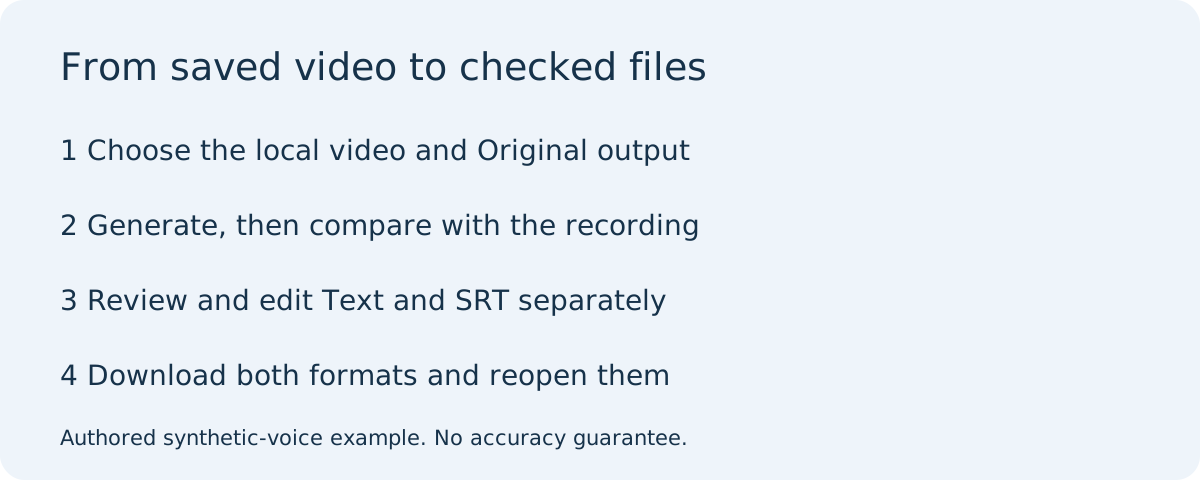
Our run: choose the file and the output deliberately
For this example we opened the public tool on November 4, 2026, selected English as the spoken language, and changed Output language to Original. The reference sentence in our synthetic recording is “Fold the blue card. Place it beside the cup.” We selected spoken-card.mp4 from local storage. The page reported that the file was ready and enabled Generate.
We used the Balanced model and pressed Generate. The interface first showed the model-loading stage, then the audio-transcription stage. We waited for the result rather than treating an enabled button as a finished transcript. Model files can take time to become available on first use; this run does not establish a waiting time that another device will reproduce.
The real run returned this original-language text. The line below preserves the generated wording before our editing exercise:
Fold the blue card. Place it beside the cup.
Compare that output with the reference sentence and listen to the sample yourself. Capitalization and punctuation are editorial choices; words that change the instruction need checking against the audio. One short, clean synthetic sample cannot show how the tool handles accents, music or several speakers.
Edit and download the two views explicitly
We then made a small, visible editorial change: blue became BLUE in the Text view. This is an intentional emphasis exercise, not a correction to a misheard word. We downloaded the TXT and inspected the resulting file. It contained the edited form. The exercise makes it possible to distinguish an actual edited download from a screenshot of an unexported result.
Next we opened the SRT tab. Text and SRT keep their own edits in the current tool, so we applied the same capitalization change to the subtitle text separately. We left the generated timing values intact, downloaded SRT, and inspected its contents too. A change in Text should not be assumed to have rewritten the subtitle view.
The downloadable TXT and SRT on this page are the checked outputs from this exercise. They retain the same instruction and the deliberately emphasized word. Their timestamps came from this run; we did not use them to measure synchronization against individual video frames. Subtitle timing remains something to review in your intended player or editor.
Before accepting a download, check all three labels: Original or Translation, Text or SRT, and the language you want. A translation is a separate wording version. If you selected another output language, wait for its result or choose the available Original version. Do not rename a translated file as an original-language transcript.
Match the file to what you want to do next
Use TXT when you want searchable notes, a working script or words to paste into another document. Use SRT when the next application expects timed subtitle cues. An SRT file is not a captioned MP4: it contains subtitle text and times. Adding it to a video requires a compatible player, editor or separate caption workflow.
For detailed timing syntax, open the SRT worked example. If you intend to quote someone, follow the source-check workflow before publishing their words. Keep the recording until both your text and subtitle files are usable.
Finish with a file you can reopen
Open each downloaded file outside the tool. Confirm that the latest edit is present and that you saved the intended language version. Keep both files beside a source reference. Once they are safely saved, you can clear the workspace; the browser may ask before discarding edits. Downloading is the handoff point, not simply seeing text appear on the page.
This guide was prepared after reviewing GetTheScript’s file workflow and SpeakApp’s video-to-text page on November 4, 2026. They describe upload, generation and export. Our example adds a specific local sample and separately inspected edited TXT/SRT outputs; it does not independently test either competing service.